Learn how to implement Consent Mode v2 with CookieYes and Google Tag Manager for privacy compliance and accurate data tracking.
Introduction
In today’s privacy-conscious world, obtaining user consent for cookie collection is essential. This article delves into Consent Mode v2, a framework that enables website owners to effectively manage user cookie consent using Google Tag Manager (GTM). We will explore the benefits of Consent Mode v2 and provide step-by-step instructions for its implementation using GTM and CookiesYes.
I have uploaded a step-by-step YouTube video in Romanian with English subtitles available.
Why Implement Consent Mode v2?
If you are using remarketing in Google Ads and targeting countries that have signed the Digital Markets Act (DMA), or if you are using Google Signals in Google Analytics 4, then you need to implement Consent Mode v2 on your website.
Even if you choose not to use Consent Mode v2 and continue tracking users in GA4 to some extent, there are some important considerations to keep in mind. You won’t be able to deliver personalized ads in Google Ads.
Consent Mode v2 provides several advantages:
- Enhanced User Control: Users have clear options regarding cookie usage, promoting trust and transparency.
- Improved Compliance: Stay compliant with data privacy regulations like GDPR by obtaining informed consent.
- Accurate Data Tracking: Ensure accurate data collection by respecting user consent preferences.
- SEO Benefits: Search engines may favor websites that demonstrate responsible user data practices.
CookieYes Integration of Consent Mode v2
CookieYes is the CMP I chose to set up the cookie banner. I won’t cover the setup of the CookieYes account as it involves relatively simple steps.
If you have used the CookieYes plugin for WordPress and want to integrate it with Google Tag Manager, you cannot have both the plugin and GTM implementation running at the same time. To integrate them, you need to deactivate the CookieYes plugin first and then follow the instructions provided within the Google Tag Manager platform.
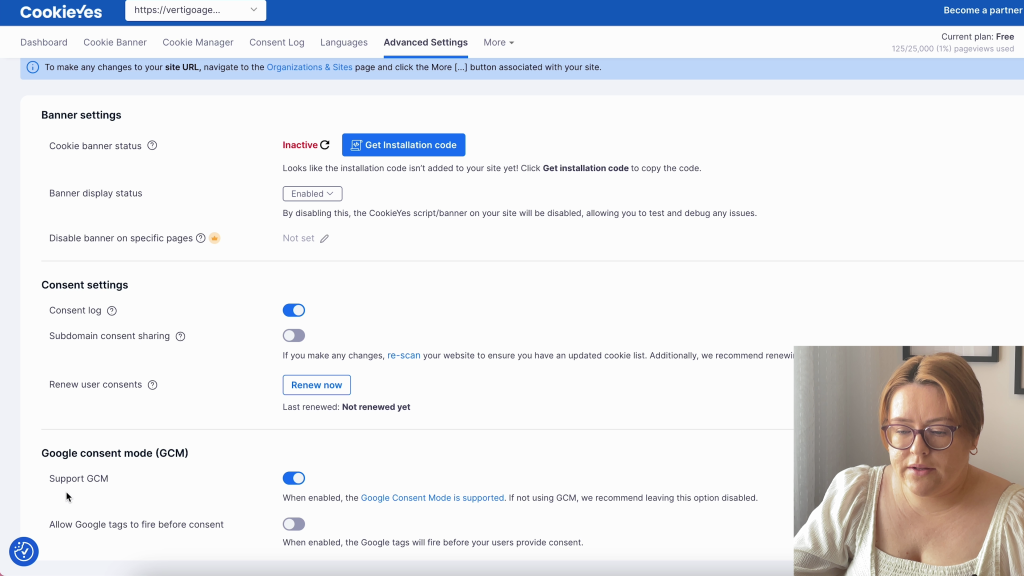
After creating a CookieYes account, a site scan will occur to identify the cookies on the site and categorize them. First, in the CookieYes platform’s Advanced Settings, check “Support Google Consent.”
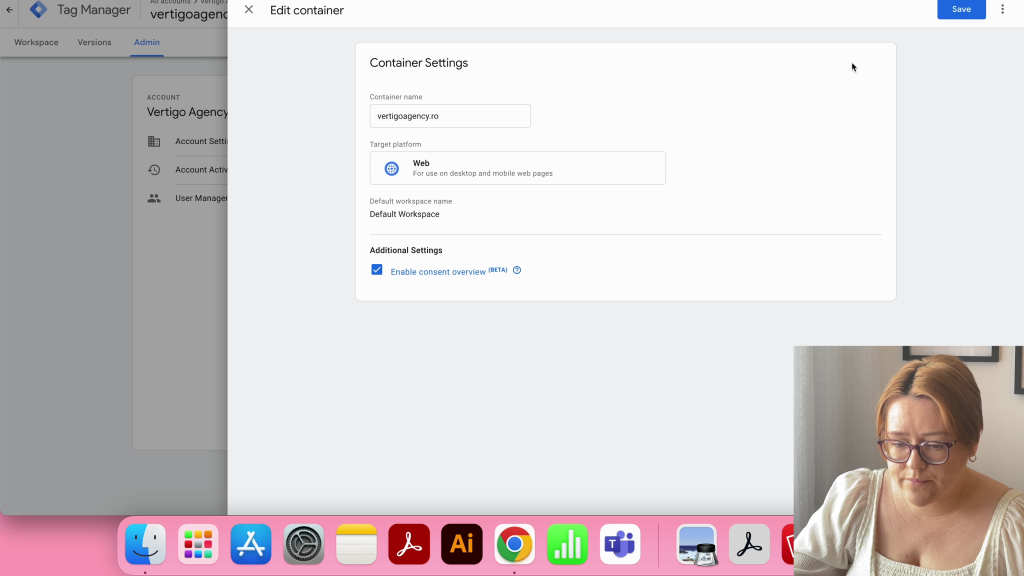
In Google Tag Manager, navigate to the Admin tab, then go to Container Settings and enable Consent Overview. It’s crucial to do this for all Tag Manager accounts.
To create a new tag, you should go to the Tag Configuration section and access the Community Template Gallery.
Many popular CMPs provide an integration template for Consent Mode v2, including CookieYes. To locate CookieYes’s template, simply search for it in this section and then add it to our Tag Manager interface.
Tags -> New -> Tag Configuration -> Community Template Gallery

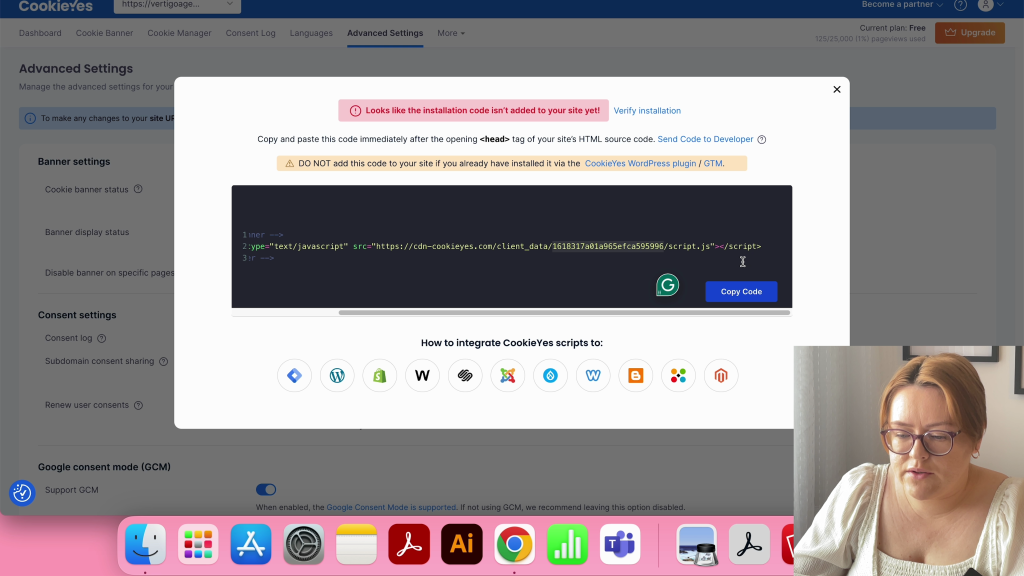
To set up the tag, you need a website key. To get the website key, go to the Advanced Settings tab in CookieYes. Then, click on the ‘Get Installation Code‘ button, and you can find the website key between the data and script.js. Copy the key and paste it into Tag Manager.
We need to define the default settings of Consent Mode on our site as the next step. Let’s discuss Google’s documentation for this. Consent Mode v2 has two implementation modes: Basic and Advanced.
- In Basic mode, if a user chooses not to accept any cookies on your site, neither Google nor you will be able to track that user. This means they will be an invisible user on your site, and you will not be able to see them in the reports.
- In Advanced mode, Google suggests sending a cookieless pin to them, even if the user has not accepted any cookies. This pin will indicate that a user visited your site. Google will only be able to model the data in GA4, but these users will remain invisible.
The Basic Mode
To set the default state, you need to follow these steps:
1. Click on “Add Setting” and disable all cookies except for the necessary ones.
2. Ensure that the necessary cookies are correctly defined in the CookieYes categories.
3. Click on “Add” to save the new default state on your site.
4. In “Other Settings,” check both boxes.
5. Under “Triggering,” choose “Consent Initialization – All Pages” and click on “Save.”
6. Finally, submit and publish this new tag in your container.

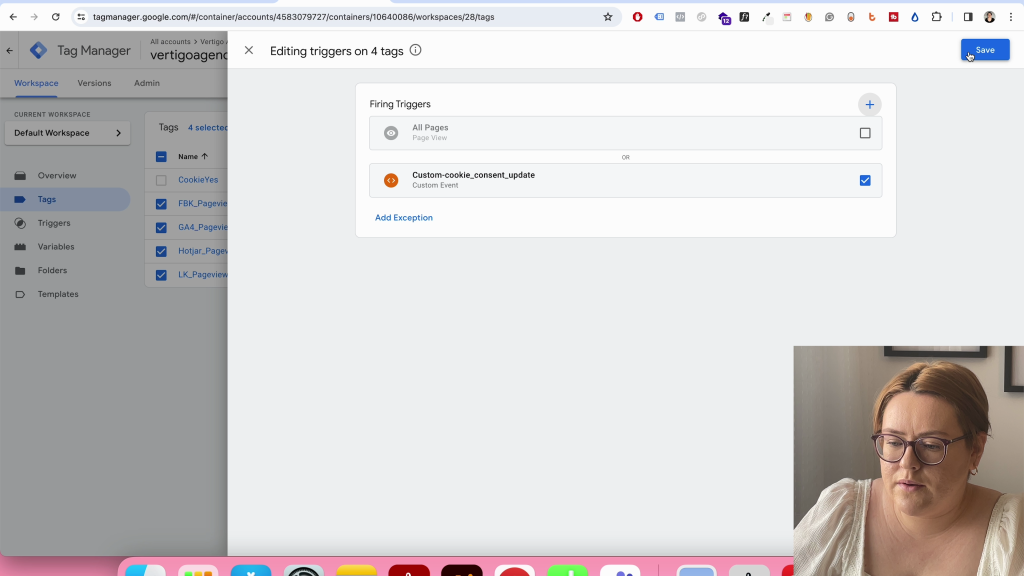
Let’s create a new trigger to fire the existing tags. Go to Triggers -> New -> Trigger type: Custom event -> Event name: cookie_consent_update -> Save

To set up a Custom Event as a trigger for your tags, follow these steps:
1. Choose your desired tags, excluding the CookieYes tag.
2. Click on the two-circle icon located on the top right corner – Consent Overview.
3. Uncheck the previous triggering option, which is set to All Pages.
4. Click on the “+” button to add a new Custom Event.
5. Set the new Custom Event as a trigger for your selected tags.
6. Save your changes.
7. Finally, submit and publish your updated settings.
If you follow these steps, you should be able to successfully configure a Custom Event as a tag trigger.
To manage the consent options for tags in your Workspace, follow these steps:
- Click on the shield icon located at the top-right corner of the page – Consent overview. This will open a new window.
- Here, you will see the consent options for each tag. CookieYes and GA4 have built-in consent.
- For tags such as Google, Facebook, LinkedIn, and Hotjar, additional consents need to be set.
- To set additional consent for Facebook and LinkedIn tags, select them and click on the shield icon from the top-right corner.
- Next, enable the ad_storage consent option and click Save.
- Similarly, to set additional consent for GA4 and Hotjar tags, select them and click on the shield icon from the top-right corner.
- Enable the analytics_storage consent option and click Save.
- Make sure to set this additional consent for all the tags, depending on their purpose.


The Advanced Mode
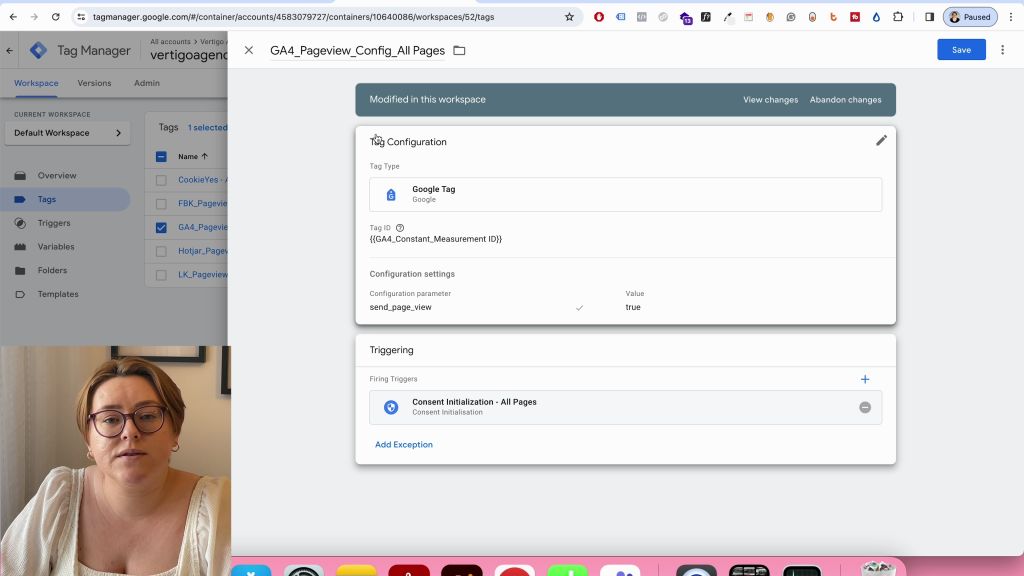
To enable Advanced Mode, follow these steps:
- Click on the shield icon located in the top-right corner to access the Consent Overview.
- Next, select the Google tags you have – GA4, Google Ads, Conversion linker – and remove the Additional Consent.
- Set it to “Not set” and you’re all done!

We need to remove the custom trigger we had set for all Google Tags because we don’t have the user’s consent. After that, we will modify the trigger from Custom Event to Consent Initialization – All Pages. Once done, click “Save” and then “Submit and Publish.”
Key Takeaways Consent Mode v2
Here are the steps to implement Consent Mode v2, Basic, and Advanced Mode.
If you’re interested in learning how to properly test your implementation, I recommend checking out a video that I recently posted on YouTube. The video provides comprehensive guidance on using Google Dev Tools to test your implementation effectively. You’ll learn how to leverage the various tools within Google Dev Tools to test for issues, check your code for errors, and ensure that your implementation is working as intended.
This video is an excellent resource for anyone looking to optimize their implementation testing process, and I highly recommend giving it a watch.
Best Practices for SEO-Friendly Cookie Consent
- Clear and Concise Banner: Design a user-friendly cookie banner that clearly explains the purpose of cookies and provides easy-to-understand consent options.
- Multiple Consent Options: Offer granular control for users to choose which cookies they consent to (e.g., essential, analytics, advertising).
- Respect User Choice: Strictly adhere to user consent preferences and avoid using workarounds to circumvent consent.
- Data Minimization: Collect only the minimum data necessary for website functionality and user experience.
- Transparent Privacy Policy: Maintain a readily accessible and up-to-date privacy policy detailing your data collection practices.
Conclusion
Remember to implement Consent Mode v2 with GTM to give users control over their data, ensure compliance, and accurately collect data. It’s important to prioritize a user-centric approach for better SEO and user trust.
The content focuses on implementation and doesn’t delve into the legal aspects of Consent Mode v2. It’s recommended to consult with a legal professional for legal compliance.
What are your thoughts? Feel free to message me here.
Flavia Groza-Bocăneț